
Using Netpoa Client Portal → User Management
Netpoa allows you to securely share access to your hosting account without giving out your password, by inviting another user with limited permissions.
The third party will log in with their own email and password, and you can remove them anytime.
✅ Step 1: Login to Your Netpoa Client Area
- Visit https://netpoa.com/login.php
- Enter your normal login details
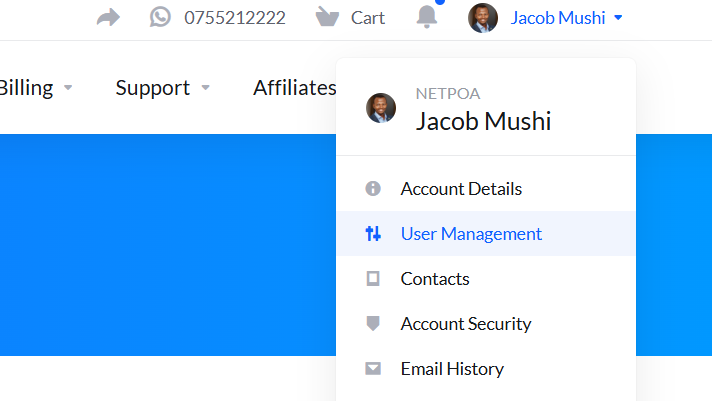
- On the top right, click your name/profile
- Select User Management
(as shown in your screenshot)
✅ Step 2: Invite the Third Party
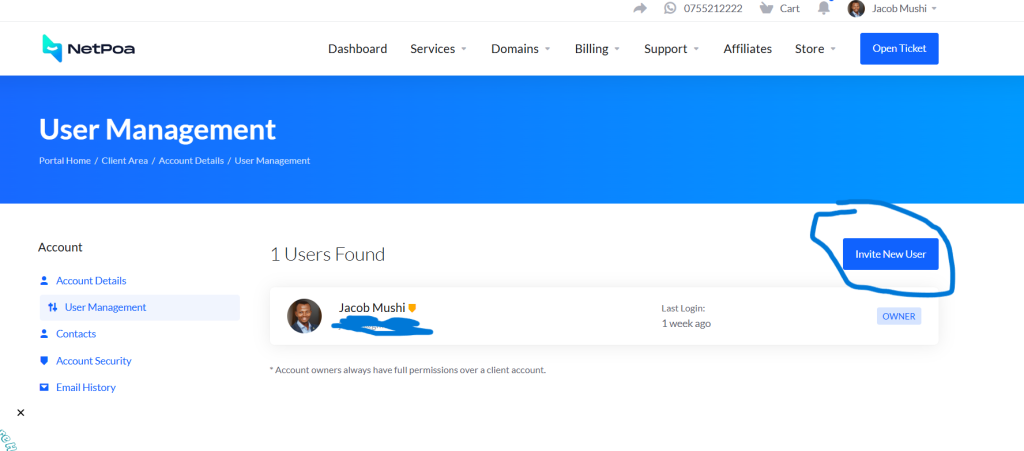
- Inside User Management, click Invite New User (right side of the screen)
- A popup will appear
- Enter the third party’s email address (NOT yours)
✅ Step 3: Choose the Correct Permissions
On the “Invite New User” window, select:
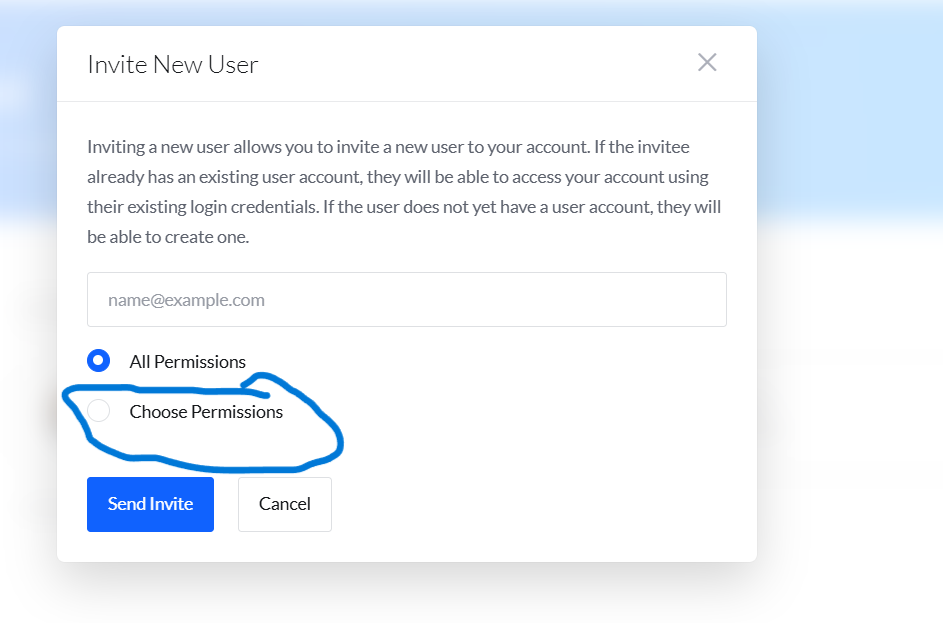
✔ Choose Permissions
Then enable only:
1. View Products & Services
This allows the invited user to see your hosting package.
2. Perform Single Sign-On
This gives them access to cPanel login only, without showing passwords.
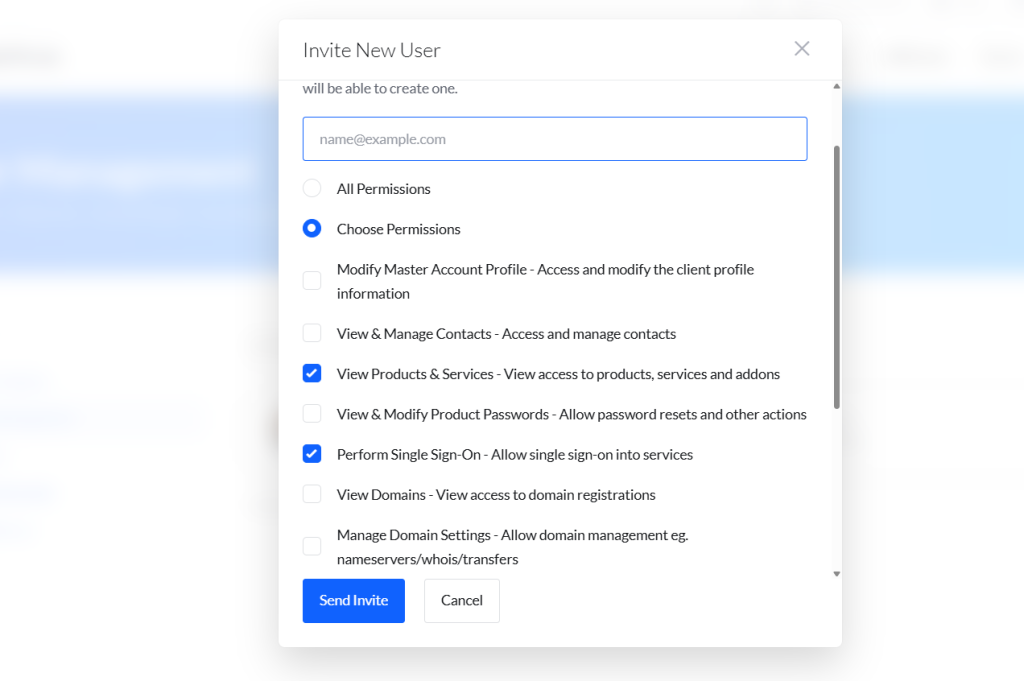
These two permissions allow the third party to:
- Access your hosting service
- Click “Login to cPanel“
- Work inside cPanel safely
- Without viewing billing, contacts, invoices, domains, or private data
❌ Do NOT enable:
- Modify Master Account Profile
- View & Manage Contacts
- View & Modify Passwords
- View Domains
- Manage Domain Settings
- View/Pay Invoices
- View & Accept Quotes
- Anything unrelated to cPanel
This keeps access restricted and secure.
✅ Step 4: Send the Invite
- Click Send Invite
- The third party will receive an email to create their own password
- They will log in using:
- Their email
- Their own password
They can now access only what you allowed.
💡 What the Third Party Will Do
- Login at https://netpoa.com/login.php
- Go to Services → My Services
- Select your hosting service
- Click Login to cPanel
They will enter cPanel instantly through Single Sign-On.
❌ When They Are Done: Remove Their Access
You can revoke access anytime:
Option 1 — Delete User
- Go to User Management
- Click the user
- Select Remove Access/Delete User
Option 2 — Disable Permissions
If you want to keep them listed, simply uncheck all permissions.
Instant access termination.
✔ Summary
| Task | Done Through |
|---|---|
| Add third party | User Management → Invite New User |
| Limit access | Choose Permissions → enable SSO + View Products/Services |
| cPanel login | Through Single Sign-On only |
| Remove access | Delete or disable permissions |
Need Hosting? We’ve Got You Covered!
👇 Tap Here
https://netpoa.com/store/web-hosting